Welcome to KGSg Step Up For Good
KGSg Step Up For Good is a corporate wellness application designed to help authorised participants track their daily steps, participate in fundraising challenges, and compete on leaderboards with other authorised participants.
Table of Contents
Getting Started
System Requirements
- iOS: iOS 14.0 or later
- Android: Android 14.0 or later with Health Connect support
Installation
- Download the KGSg Step Up For Good app from the App Store (iOS) or Google Play Store (Android)
- Install the app on your device
- Open the app to begin registration
iOS Onboarding
Follow these steps on your iPhone to get started quickly. Each step includes a screenshot for reference.
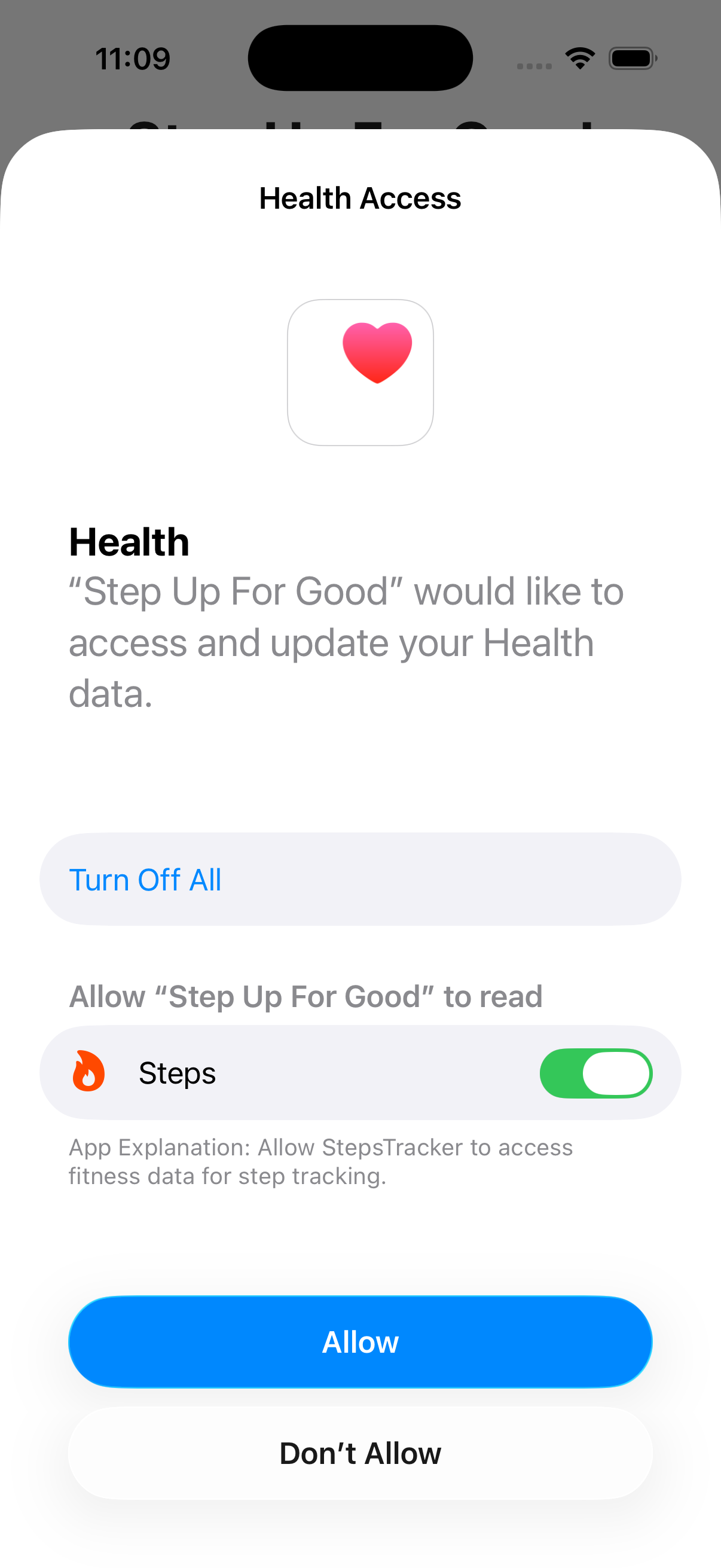
Grant the app permission to read your step data from Apple Health.
- Ensure Steps is toggled on
- Tap Allow to continue
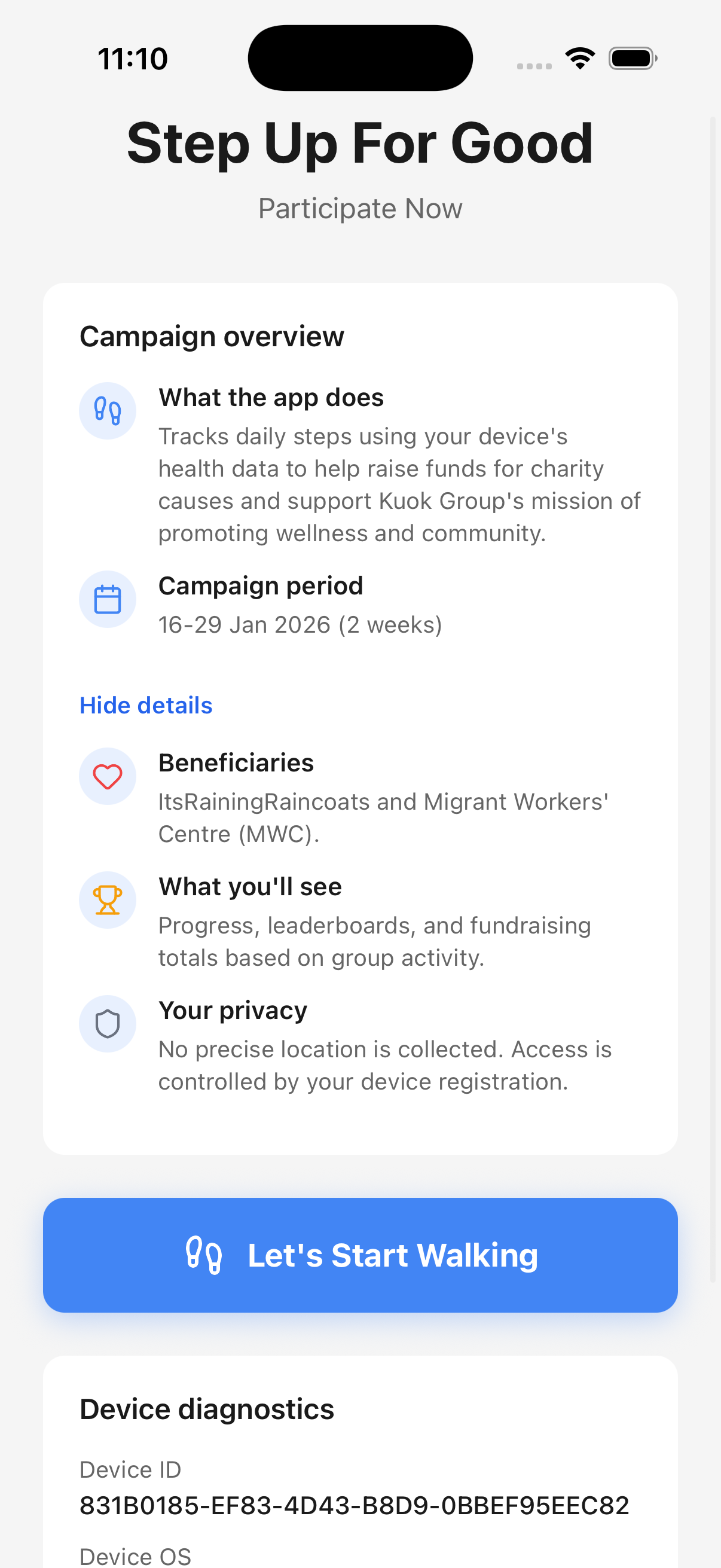
Read the campaign details, then begin registration.
- Scroll if you want more details
- Tap Let's Start Walking
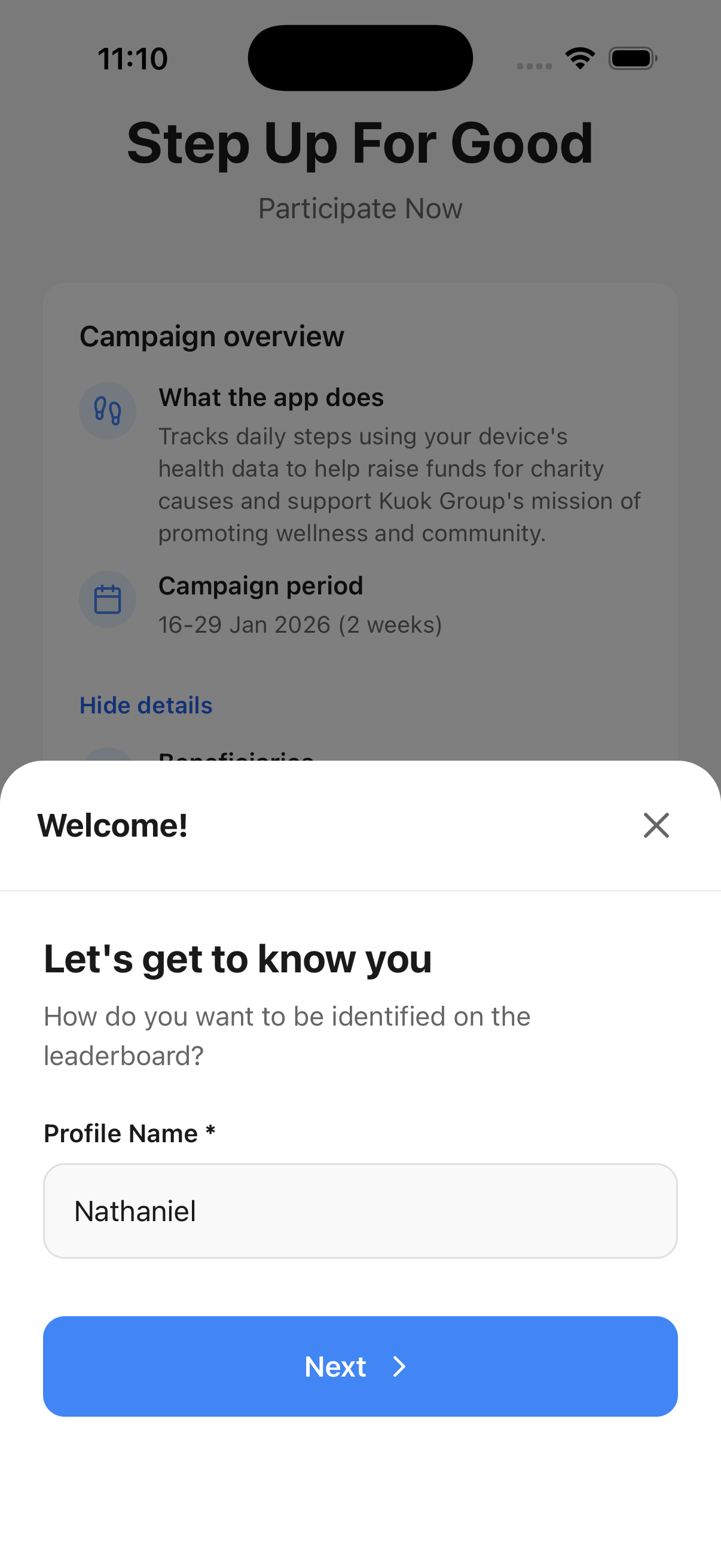
Choose the name that will appear on the leaderboard.
- Enter your profile name
- Tap Next
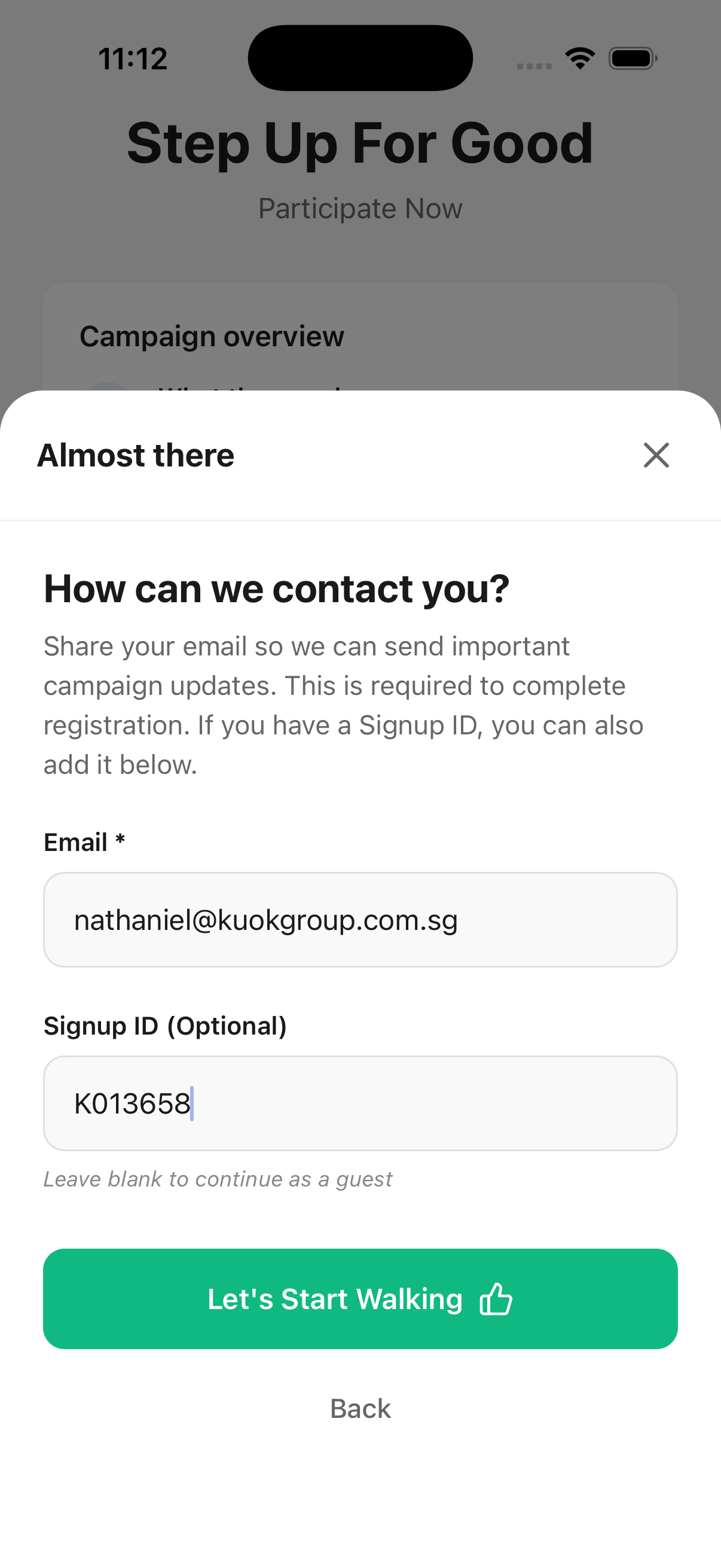
Provide your email for updates and your Signup ID if available.
- Email is required to complete registration
- Signup ID can be left blank to continue as a guest
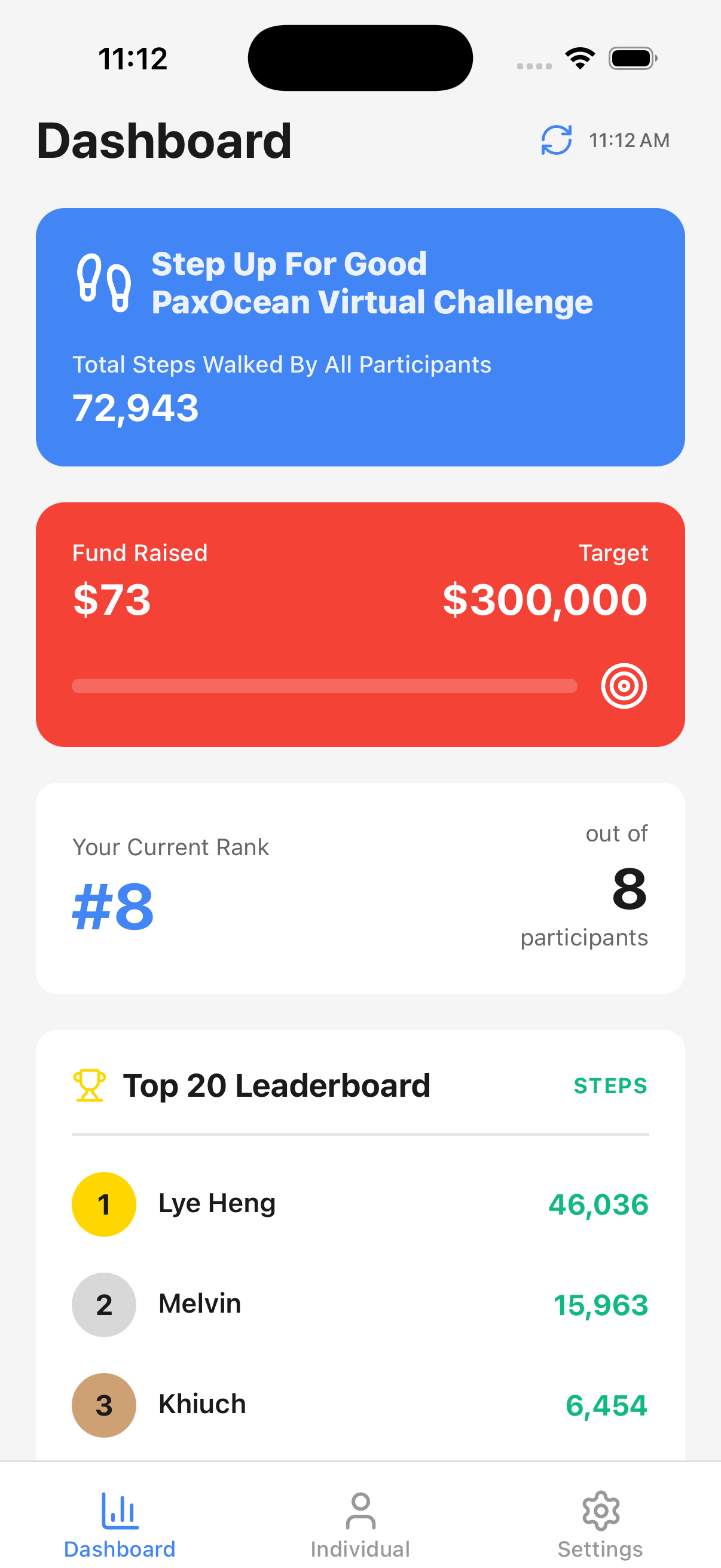
View total steps, fundraising progress, and the Top 20 leaderboard.
- Your rank updates as you walk more
- Tap the refresh icon to sync latest stats
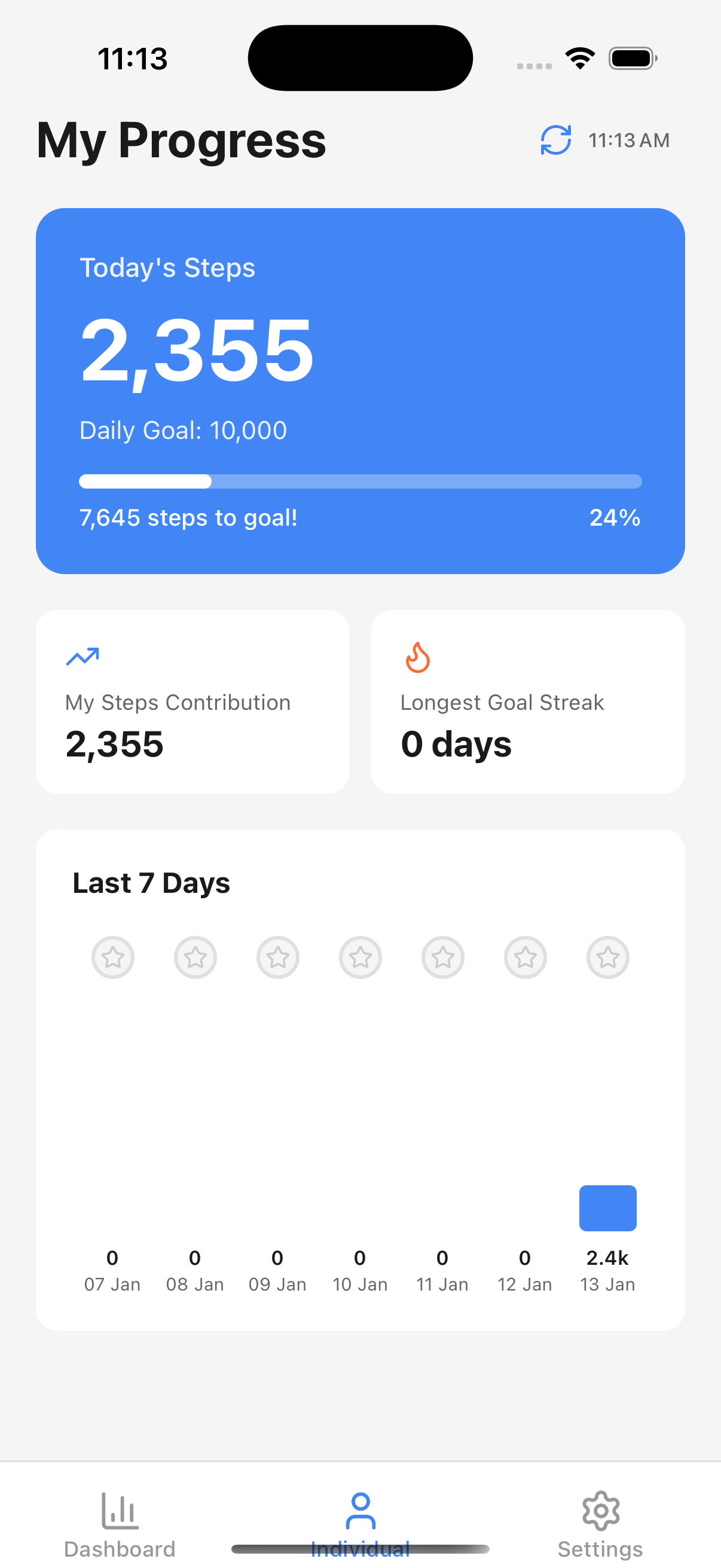
Switch to the Individual tab to view daily steps, goal progress, and streaks.
- See how close you are to your goal
- Review the last 7 days of activity
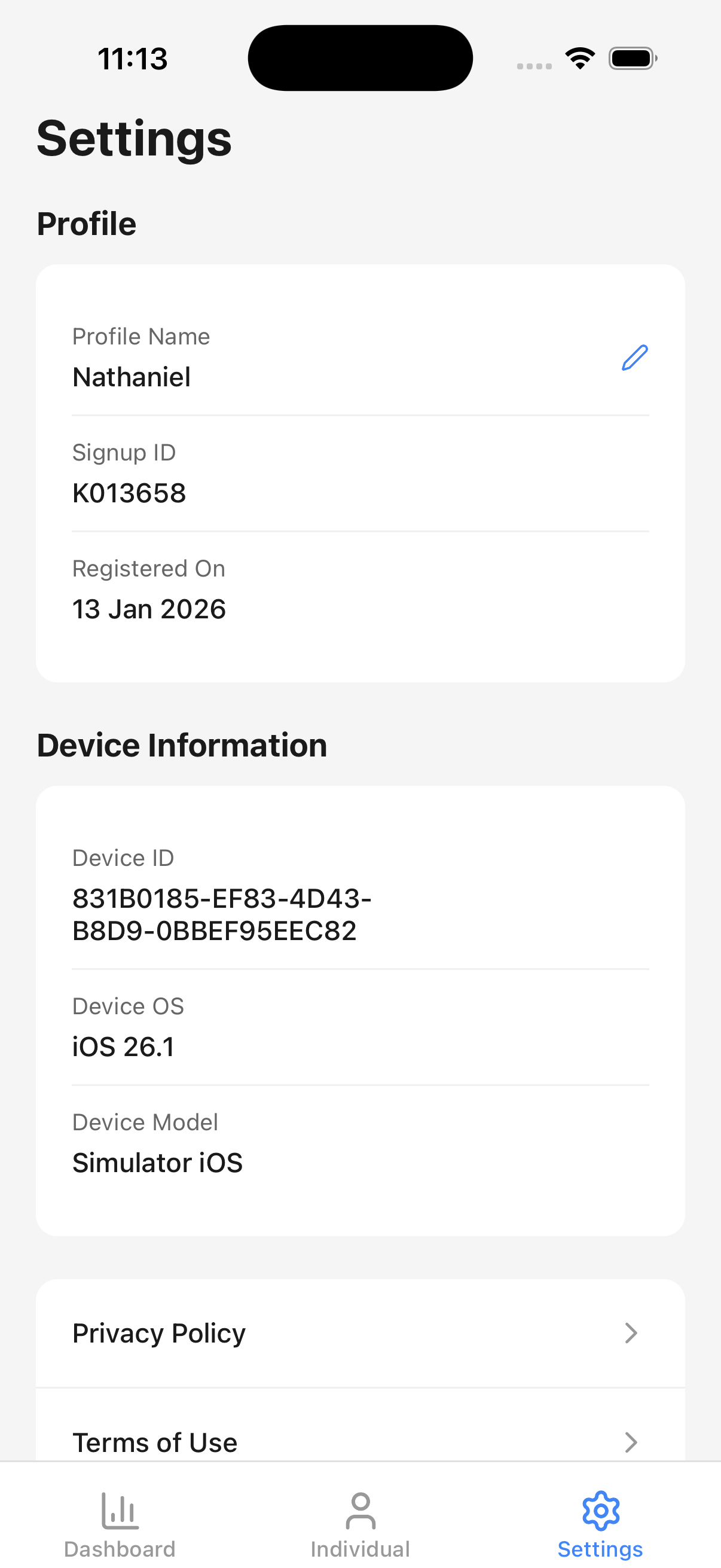
Access your profile and device details from the Settings tab.
- Edit your profile name using the pencil icon
- Review device information for support
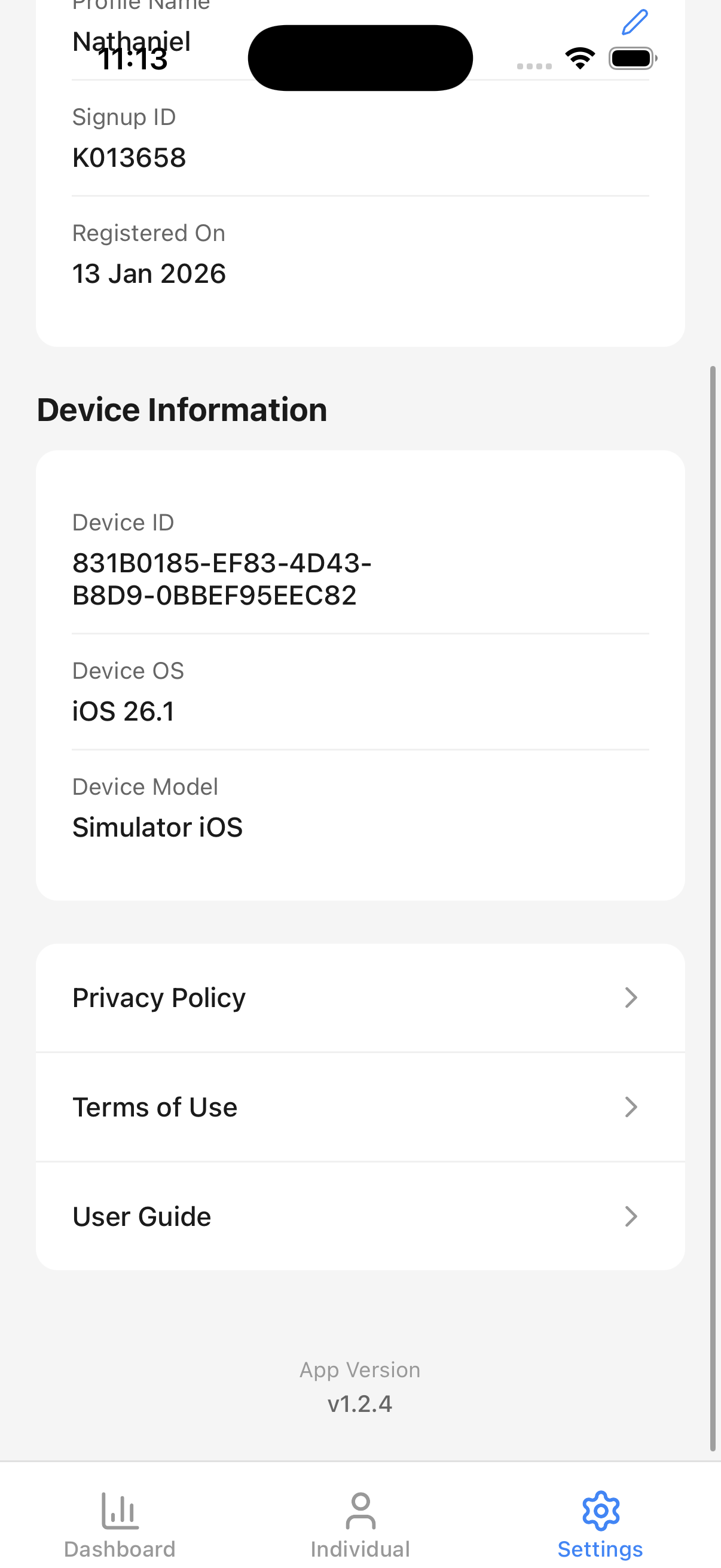
Open the in-app User Guide anytime for help.
- Scroll to User Guide
- Tap to open the guide in the app
Android Onboarding
Follow these steps on your Android device to start tracking steps. Each step includes a screenshot for reference.
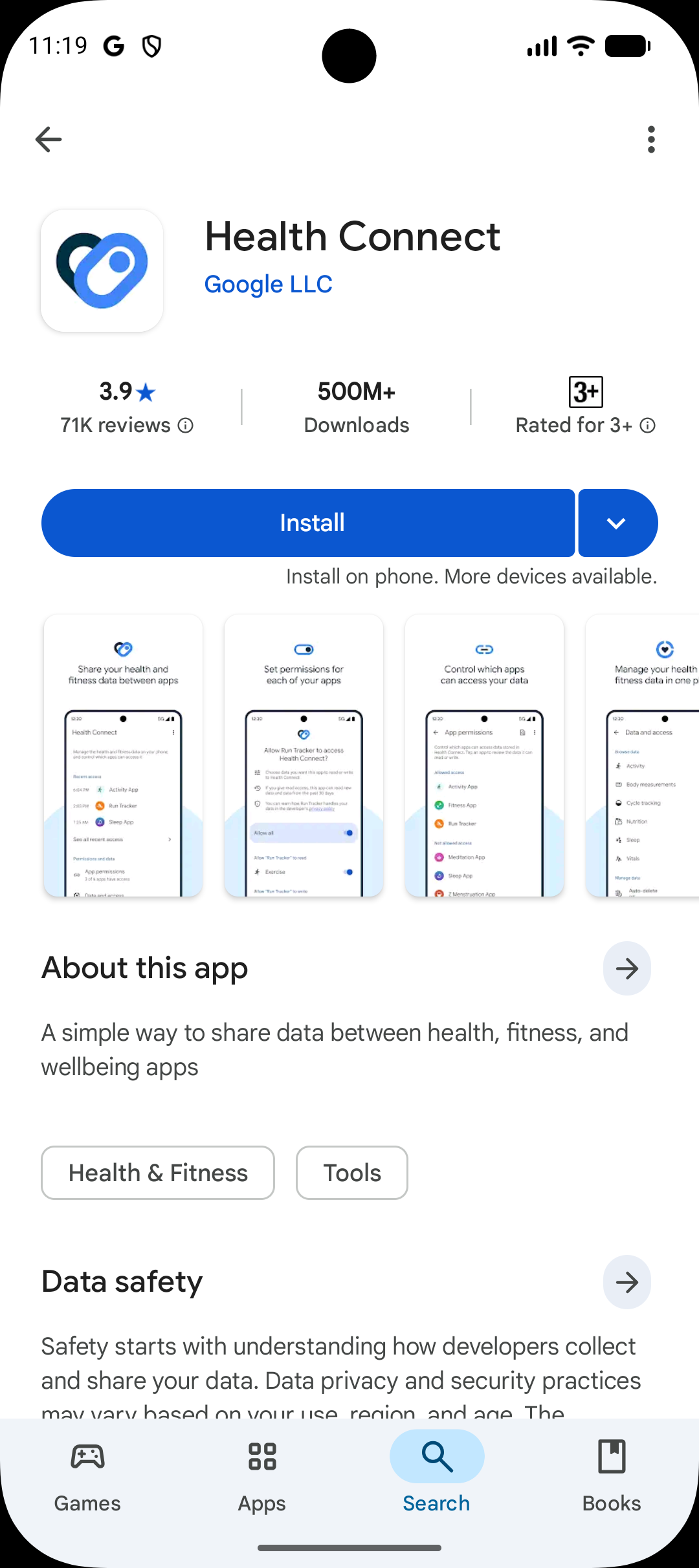
Health Connect is required to sync your step data.
- Install Health Connect from Google Play
- Return to the app once installed
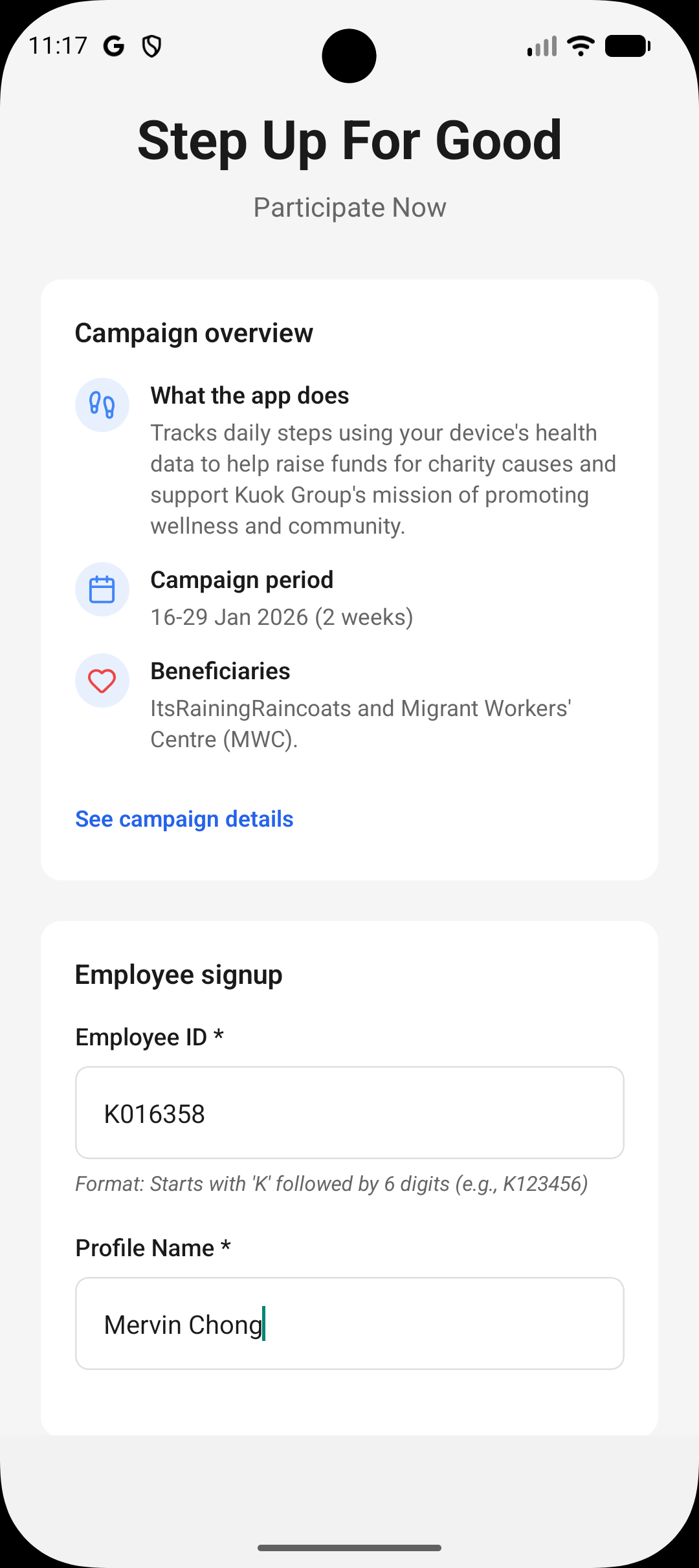
Read the campaign details and begin your signup.
- Confirm the campaign period and beneficiaries
- Scroll to the employee signup section
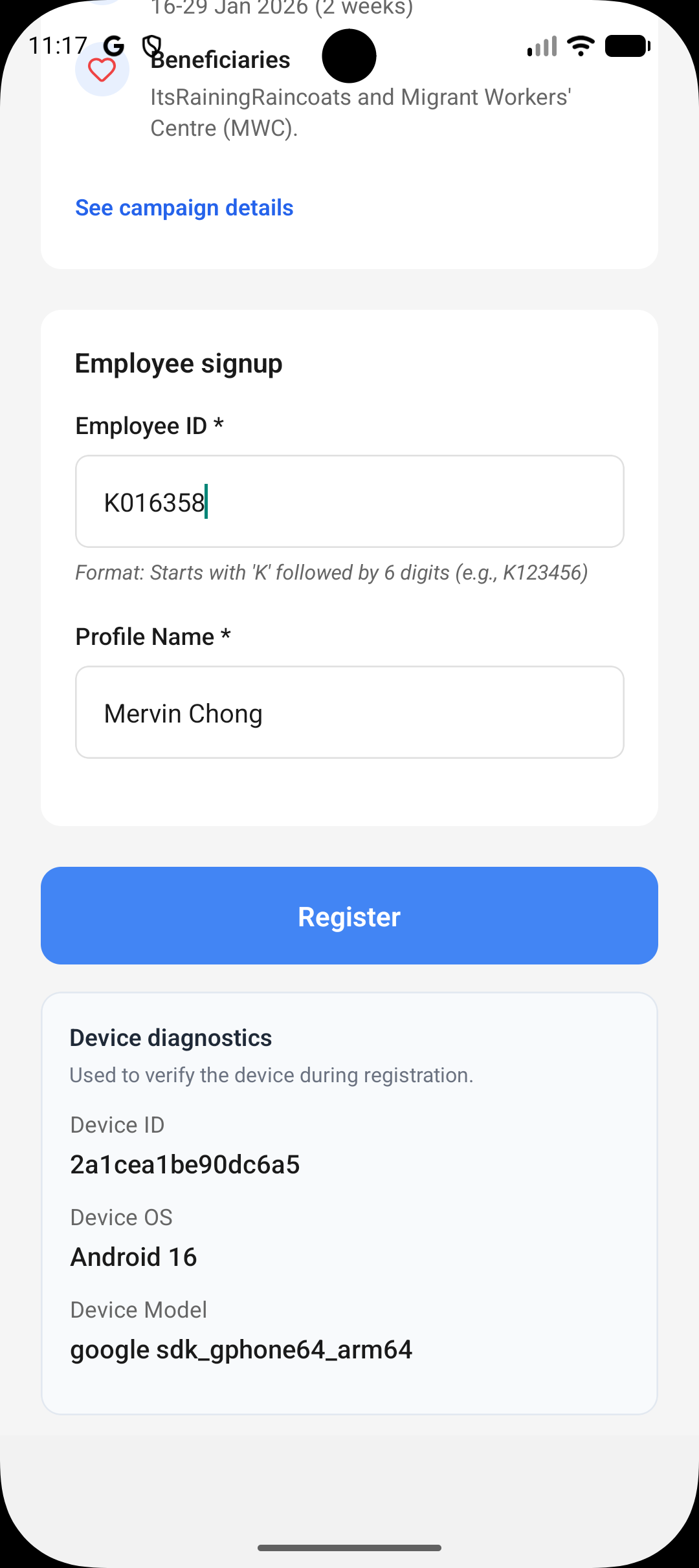
Enter your Employee ID and Profile Name, then register.
- Employee ID format: K followed by 6 digits
- Tap Register to continue
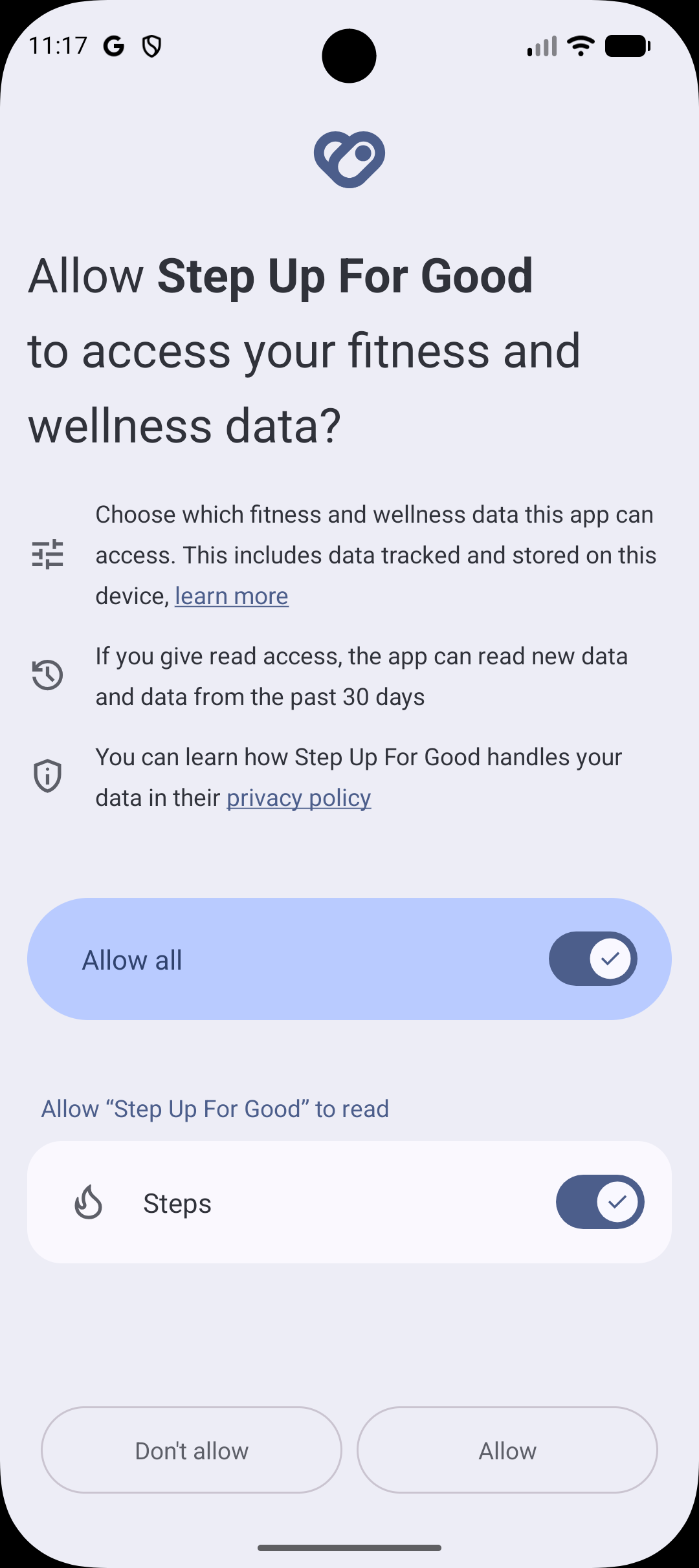
Grant permission so the app can read your steps.
- Enable access for Steps
- Tap Allow to finish setup
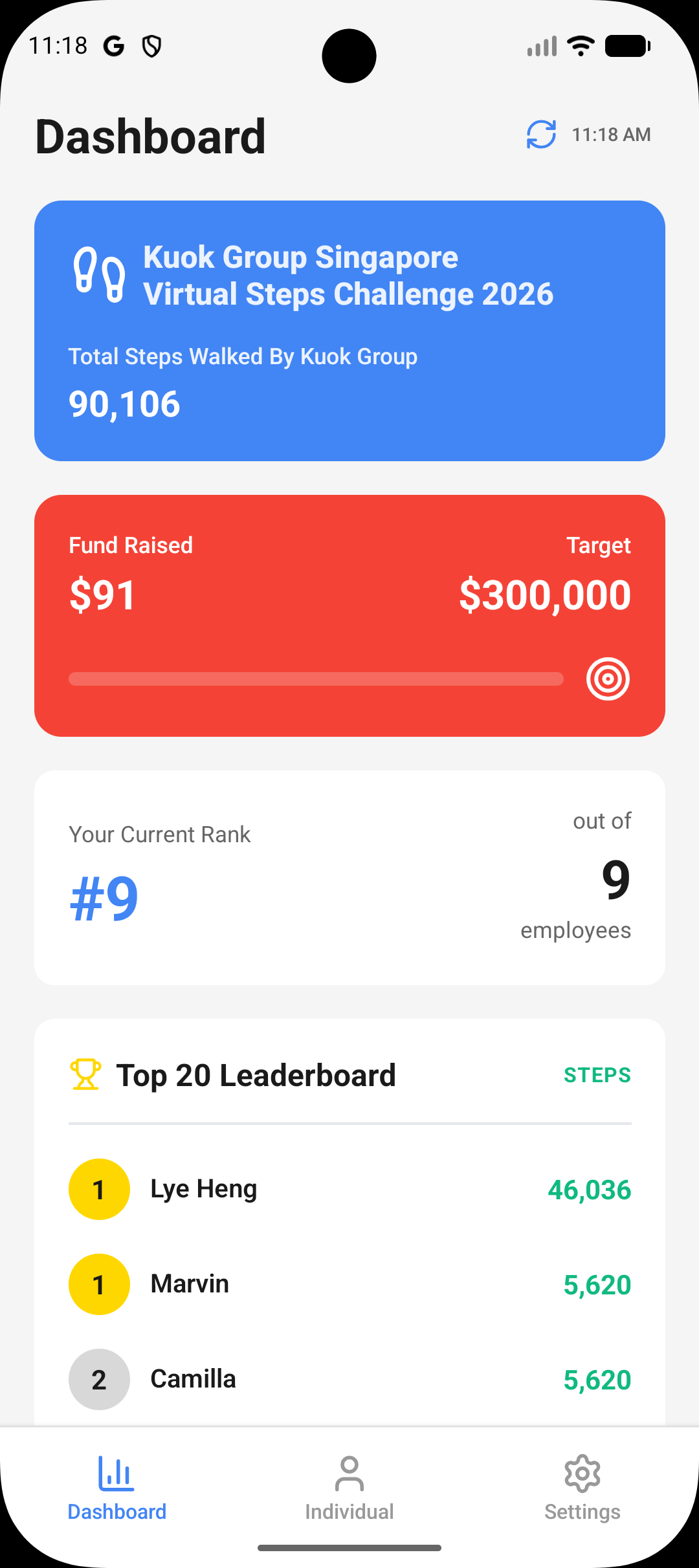
See total steps, fundraising progress, and the leaderboard.
- Your rank updates as steps sync
- Use the refresh icon to update
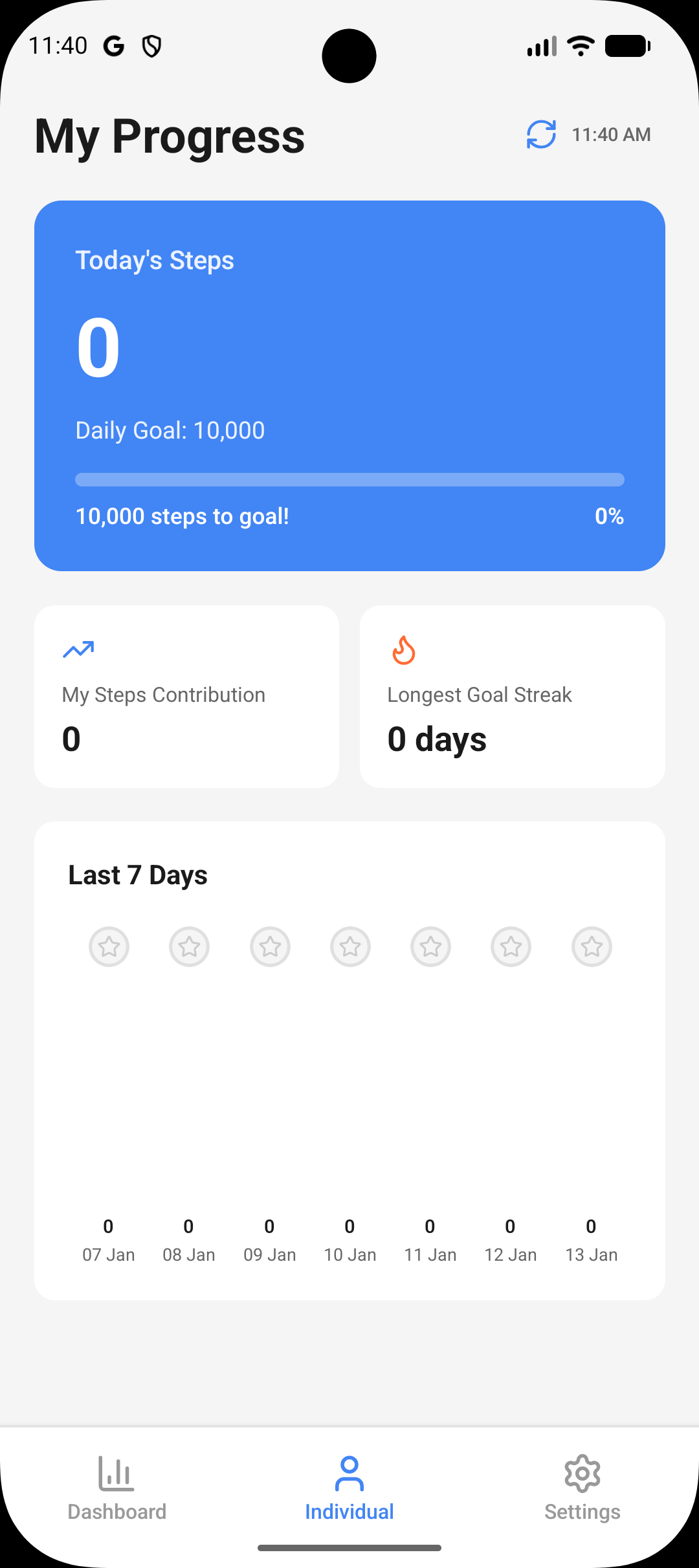
Go to the Individual tab to track your daily steps and goals.
- Monitor your daily goal progress
- Review the last 7 days chart
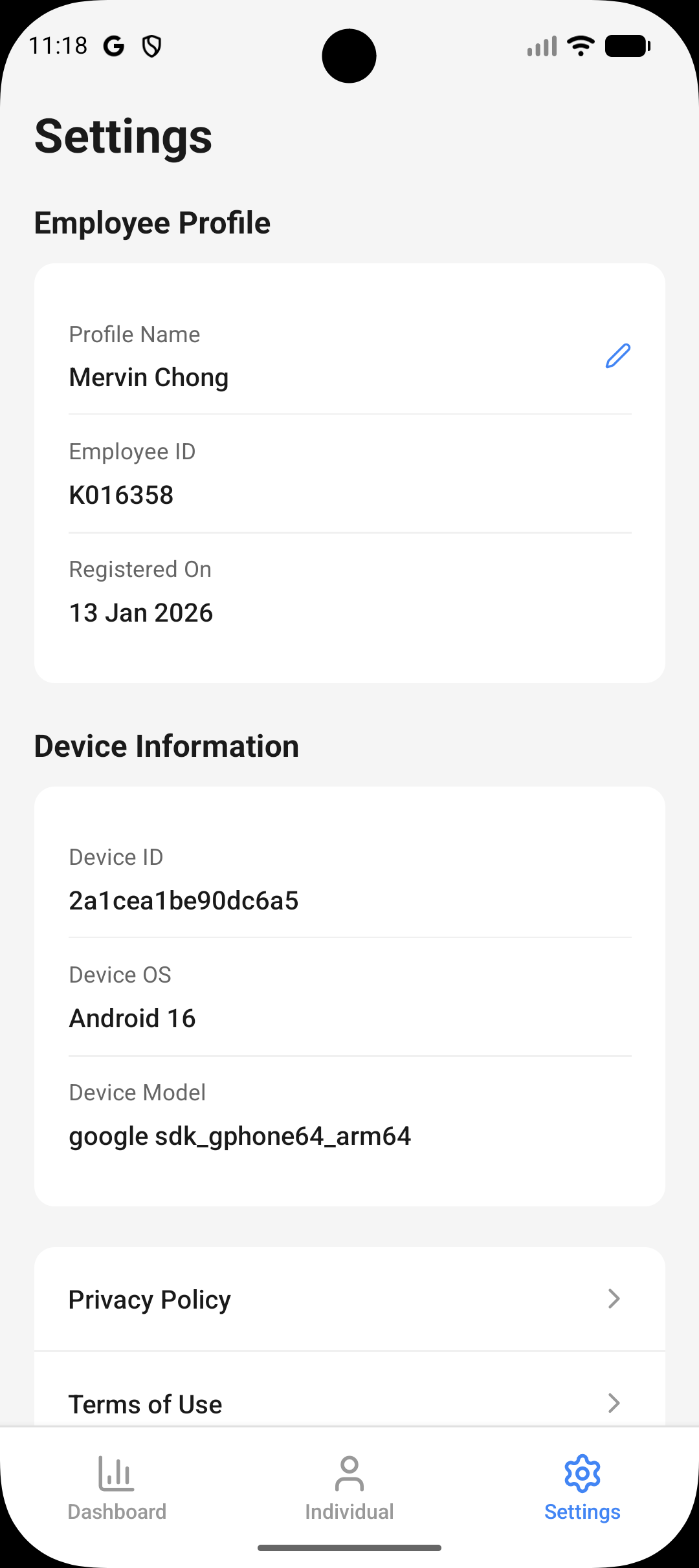
Access your employee profile and device information.
- Edit your profile name using the pencil icon
- Review device details for support
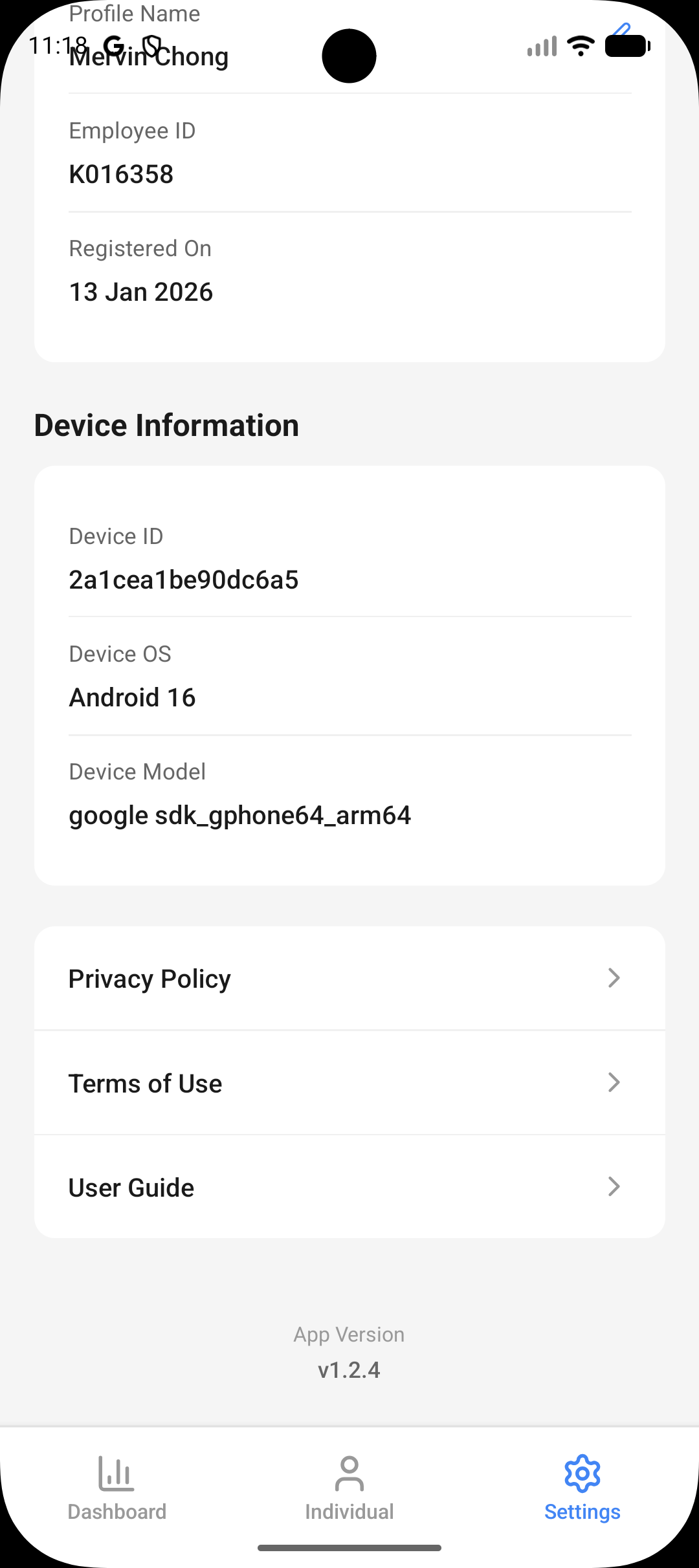
Access the in-app User Guide from Settings.
- Scroll to User Guide
- Tap to open the guide
Registration
When you first launch the app, you'll see the Welcome screen.
Registration Steps
1. Device Information
The app automatically detects your device information including:
- Device ID
- Device OS version
- Device Model
2. Signup ID REQUIRED
- Enter your signup ID in the format:
Kfollowed by 6 digits - Example:
K123456 - This ID will be provided to authorised participant
3. Profile Name REQUIRED
- Enter your full name as you'd like it to appear in the app
- This name will be visible on leaderboards
4. Complete Registration
- Tap the Register button to create your account
- You'll be prompted to grant health data permissions
Permissions Setup
To track your steps accurately, the app needs permission to access your device's health data.
For iOS Users
- After registration, you'll be prompted to allow health data access
- Go to Settings > Privacy & Security > Health
- Select KGSg Step Up For Good
- Enable Steps under "Allow KGSg Step Up For Good to Read"
- The app will now sync with Apple HealthKit to retrieve your step data
For Android Users
- After registration, you'll be prompted to allow health data access
- The app will redirect you to Health Connect
- Grant permission for KGSg Step Up For Good to read Steps data
- Return to the app to begin tracking
Dashboard
The Dashboard provides an overview of the entire team's progress and competitive standings.
Features
Total Steps
- Displays the cumulative steps walked by authorised participants
- Updates in real-time as authorised participants log steps
Fundraising Progress
- Fund Raised: Shows the current amount raised based on total steps
- Target: Displays the fundraising goal ($300,000.00)
- Conversion Rate: $0.01 per 10 steps walked
- Progress bar indicates percentage toward goal
Your Current Rank
- Shows your ranking among all authorised participants
- Displays total number of authorised participants
- Updates as you and others accumulate steps
Top 20 Leaderboard
- View the top 20 step leaders in the app
- Each entry shows:
- Rank position (with color-coded badges for top 3)
- Profile name
- Total steps accumulated
- Your position is highlighted with "(You)" indicator
- Leaderboard updates regularly to reflect current standings
Navigation
- Access Dashboard by tapping the Dashboard icon in the bottom navigation bar
Individual Progress
The Individual Progress screen shows your personal step tracking and achievements for all authorised participants.
Today's Steps
Main Display
- Current Steps: Large display of today's step count
- Daily Goal: Your target steps (default: 10,000)
- Progress Bar: Visual representation of goal completion
- Steps to Goal: Shows remaining steps needed
- Percentage: Displays goal completion percentage
Statistics
My Steps Contribution
- Shows your cumulative contribution to the team total
- All-time step count since registration
Longest Goal Streak
- Tracks consecutive days you've met your daily goal
- Resets to 0 if you miss a day
- Encourages consistency in activity
Last 7 Days
Weekly Overview
- Bar chart showing daily step counts for the past week
- Each bar represents one day with the step count displayed
- Star icons above each day (for achievements/goal completion)
- Dates labeled below each bar
- Helps identify patterns and trends in your activity
Features
- Refresh: Tap the refresh icon (top right) to sync latest data
- Auto-Update: Data refreshes automatically when you open the tab
Settings
Access your account information and app preferences.
Profile
Profile Information
- Profile Name: Your display name (editable via pencil icon)
- Signup ID: Your unique identifier (not editable)
- Registered On: Date you created your account
Device Information
The app displays your current device details:
- Device ID: Unique identifier for your device
- Device OS: Your operating system version
- Device Model: Your phone model
Additional Resources
- Privacy Policy: View the app's privacy policy and data handling practices
- Terms & Conditions: Review the terms of service
- User Guide: Access this comprehensive guide within the app
Navigation
- Access Settings by tapping the Settings icon in the bottom navigation bar
Troubleshooting
Samsung Health Setup
Samsung phone users must enable Samsung Health sync and consent to health data processing. Follow the numbered steps and screenshots below.
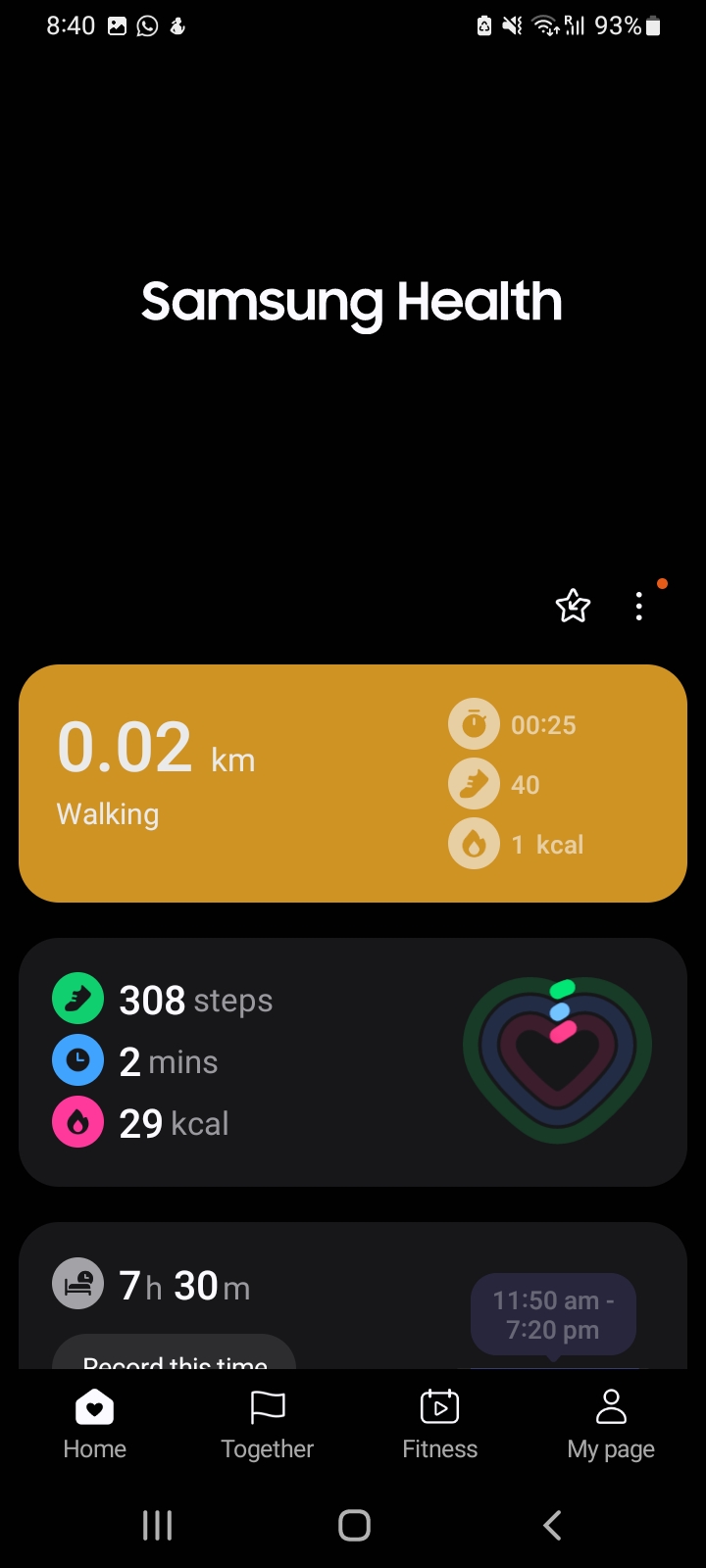
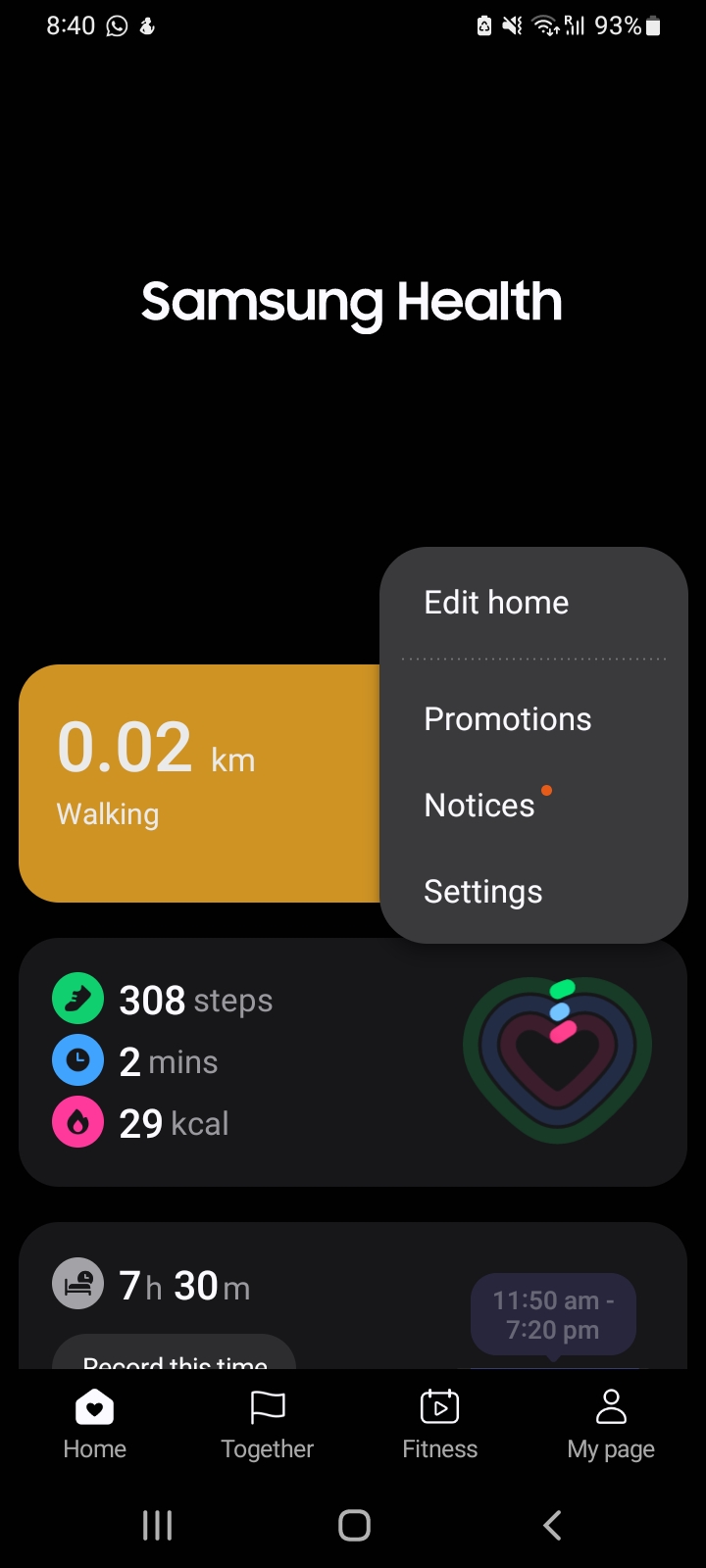
From the Samsung Health home screen, open the overflow menu.
- Tap the three-dot icon in the top right
- Select Settings from the menu
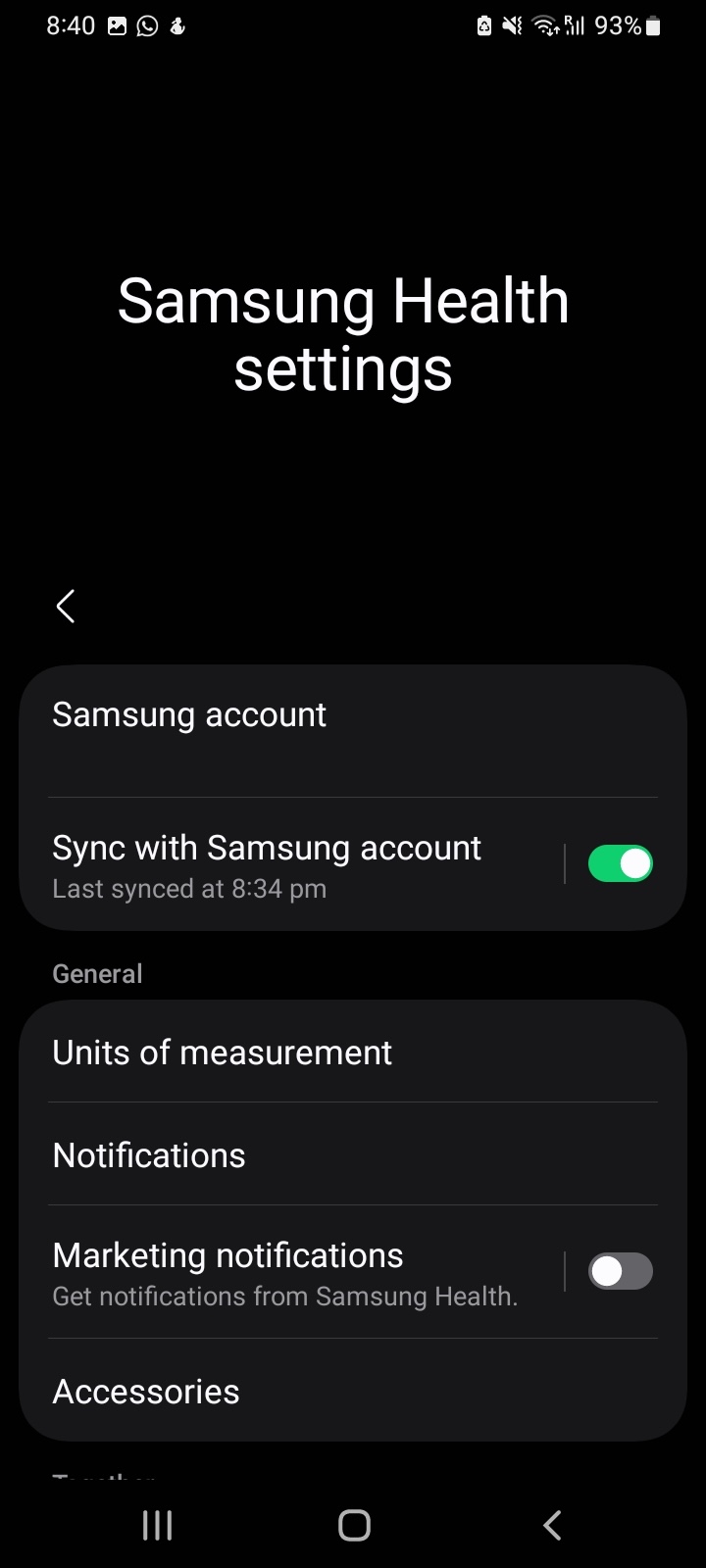
Open the Samsung Health settings screen.
- Confirm you are on Samsung Health settings
- Scroll to the Samsung account section if needed
Enable sync so Samsung Health can update your step data.
- Toggle Sync with Samsung account on
- Sign in if prompted
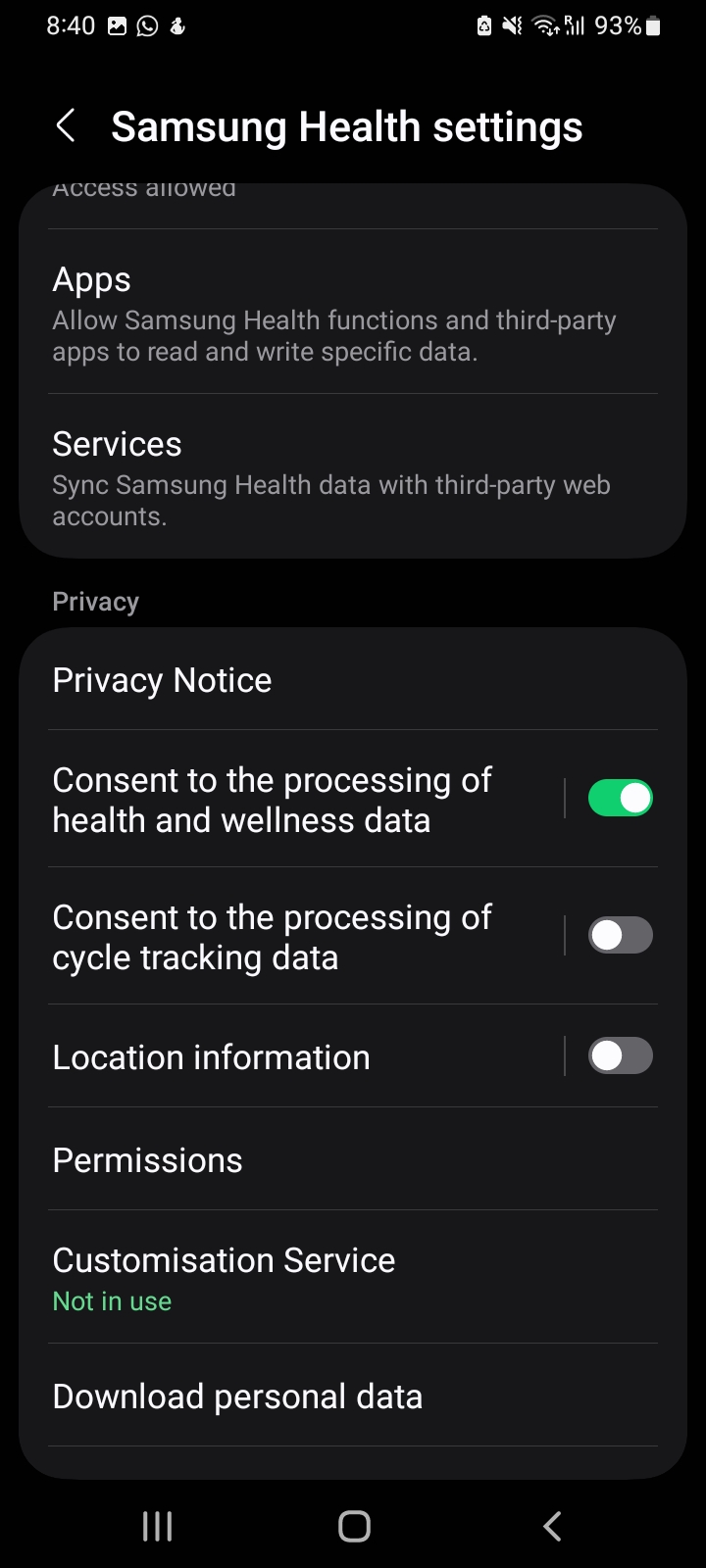
Consent to processing of health and wellness data under Privacy Notice.
- Open Privacy Notice
- Toggle Consent to the processing of health and wellness data on
Steps Not Syncing
iOS:
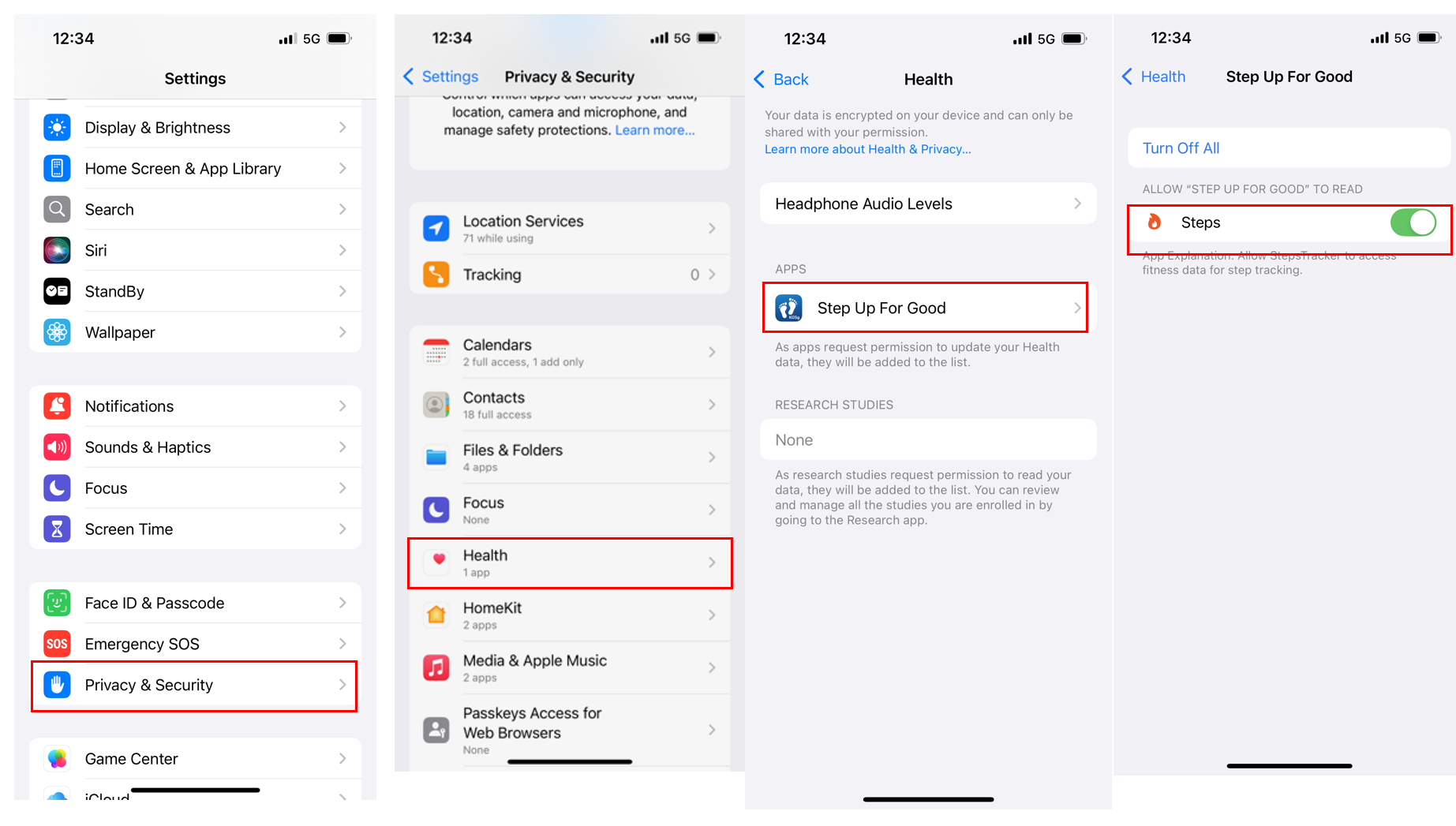
- Open Settings > Privacy & Security > Health
- Ensure KGSg Step Up For Good has permission to read Steps
- Check that Apple Health is recording steps (open Health app)
- Restart the KGSg Step Up For Good app
Android:
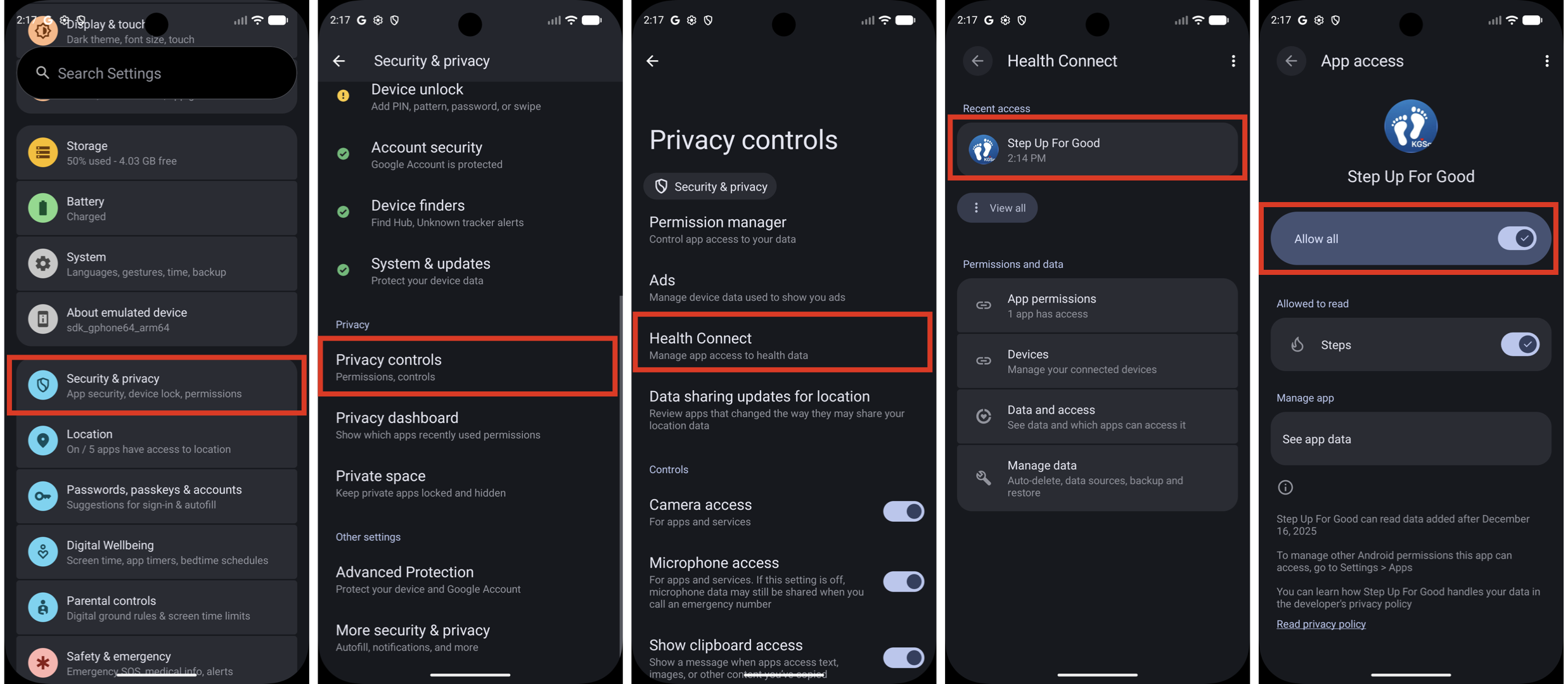
- Open Health Connect app
- Check that KGSg Step Up For Good has permission to read Steps data
- Ensure Health Connect is properly recording step data
- Restart the KGSg Step Up For Good app
Data Not Updating
- Pull down on the screen to manually refresh
- Tap the refresh icon in the top right corner
- Check your internet connection
- Ensure the app has background refresh enabled in device settings
- Force close and reopen the app
Samsung Health Not Syncing
- Open Samsung Health > Settings > Samsung account
- Enable Sync with Samsung account and sign in if needed
- Go to Privacy Notice and enable Consent to the processing of health and wellness data
- Return to KGSg Step Up For Good and refresh your steps
Can't See My Rank
- Ensure you've completed registration
- Verify that you have accumulated steps
- Check that you have an active internet connection
- Rankings update periodically, so wait a few minutes and refresh
Registration Issues
- Ensure your Signup ID follows the correct format (K followed by 6 digits)
- Check that you've entered all required fields
- Verify you have a stable internet connection
Support
For technical support or questions:
- Contact Group IT department
- Refer to the in-app User Guide
- Check Privacy Policy and Terms & Conditions for policies
Privacy & Data
Your health and activity data is protected:
- Step data is only used for tracking and leaderboard purposes
- Personal information is kept confidential
- See the Privacy Policy in Settings for complete details
- You can withdraw permissions at any time through device settings